Computers
in Art
Welcome!
So you're a marketer? A designer? Just trying to fulfill art credits? Either way, you're definitely in the right spot.
This beginner level course starts out with the very basics and is designed for anyone to enjoy. We'll laugh, you might cry but we'll have a good time learning!
Criteria Covered


Photoshop CC Essentials
Learn everything you need to know to get started in Photoshop
Overview
Combine creativity with technical skill to render digital imagery in Photoshop. The basics of content, color, composition, style and visual metaphor will be explored.
-
You will learn the basics of photo editing and image manipulation.
-
You will learn the basics of color correction and best practices for file organization.
-
You will learn how to add type, effects and brushes to add flair and depth to the artistic process.
What we cover
01 - Photoshop Navigation
02 - Beginning A Project
03 - Blemish Fixes
04 - Combining Images
05 - Color Adjustment Layers
06 - Adding Type And Effects
07 - Quick Selection And Magic Wand
08 - Clipping Masks And Brushes
09 - Pen Tool And Layer Masks
10 - Filters, Blending Modes And Warping
How we'll do it
Each milestone learning objective is measured via the successful completion of fun exercises designed to build with experience.


Blemish Fixes/Using Layers
Learn how to use layers & brush types to fix blemishes via the clone stamp, healing brush and dodge/burn tools. Cropping, image resolution and colorspace are explored as well.


Combining Images
Get familiar with navigating between tabs and windows in the Photoshop workspace by combining multiple images into one. Learn how to crop, specify image settings and scale images appropriately.


Using Adjustment Layers
Explore adjustment layers to color correct and make fine adjustments to images nondestructively. Learn best practices for using these tools determining when using them is appropriate.


Adding Type/Effects
Learn how to add flair to your document with the addition of typography! Learn how to add fonts from Adobe Fonts and how to manipulate and add effects for emphasis and creative flair


The Pen Tool
Practice makes perfect, zoom in and make purposeful selections isolating elements from an image.


Clipping Masks/Brushes
Learn how to combine imagery with vector art and typography to make creative compositions using clipping masks and add depth using different brush techniques.
Create a final project
Combine this knowledge and more to create your final project - a Photoshop collage
Your final project is a culmination of all of the skills learned. Combine creativity with technical skill to render a digital collage in Photoshop. The basics of content, color, composition, style and visual metaphor will be explored.


Beginning Illustrator
Learn the fundamentals and create fun projects using the power of Illustrator
Overview
Explore tools and techniques to create a photorealistic technical illustration in Adobe Illustrator
You will learn the basics of vector drawing and the application of a variety of tools and brushes within the program as well as the importance of vector files and how they are different than raster files. You will learn the fundamentals of appropriate color management, file organization and saving for i
What we cover
01 - Beginning A New File
02 - Drawing WIth Shapes
03 - Combining Shapes
04 - Adding Color
05 - Pen Tool
06 - Clipping Masks
07 - Stroke Effects
08 - Working With Color
09 - Adding Gradients
10 - Typography & Adding Fonts
How we'll do it
Each milestone learning objective is measured via the successful completion of fun exercises designed to build with experience.


Drawing With Shapes
Get acquainted with vector drawing by learning the ins and outs of shapes! Learn how to scale, color and combine them to create a meaningful layout and lay the groundwork for how to use this powerful program.

The Pen Tool
Ah, the pen tool, it takes on a whole new life in this program and is far and away Illustrator's most meaningful tool. Learn what a bezier curve is and how to manipulate handles to create iconic shapes.


Stroke & Brush Effects
This is where the fun starts, learn to add fun effects and use some standard illustrator settings to create powerful compositions.


Exploring Color Themes
Illustrator is the home of all things branding. Understanding how to add and apply color in a meaningful way is explored as well as some tricks of the trade.


Using Type
Using type in Illustrator has endless possibilities and this section lays the groundwork for creative thinking and typography manipuluation.

Color Blending, Gradient Mesh & Effects
Learn how to add depth, contrast and flair to your work using Illustrator's powerful techniques.
Create a final project
Combine this knowledge and more to create your final project - a photorealistic illustration
Create a stylized, realistic illustration of an inanimate object focused on depth and contrast


InDesign Basics
Combine typography, imagery and color to create professional layouts in InDesign
Overview
We will work through real life projects starting with a simple brochure, a business card and a magazine spread.
We will work with color like a professional where you will learn how to pick your own as well as follow corporate standards. We will find, resize & crop images for your documents and you will explore how to choose & use fonts like a professional using the powerful layout features that InDesign offers.
What we cover
01 - Beginning A New File
02 - Adding And Matching Custom Colors
03 - Formatting Text & Adding Fonts
04 - Resizing Layouts
05 - Images: Sources, Formatting & Resizing
06 - Paragraph, Character & Object Styles
07 - Using Spreads, Placeholders & Columns
08 - Master Pages
09 - Workflow Tips & Tricks
10 - Packaging Files For Sharing
How we'll do it
Each milestone learning objective is measured via the successful completion of fun exercises designed to build with experience.

Brand Guidelines
Get started with exposure to a professional project that follows brand guidelines specified for color, logos, typography and imagery.

Working With Type
Get acquainted with adding and adjusting type. Learn how to add fonts from other sources as well as special characters and formatting.


Using Images
Learn how to use vector and raster images in files and make sure they are appropriately sized and color matched for the intended output.

Using Styles
Use InDesign's powerful style options for text and objects to ensure proper workflow and edits.


Using Spreads
Learn how to create multi-page layouts, add a cover, page numbers and other details automatically.

Formatting Layouts
Learn how to format large bodies of text with ease, check your assets and get everything ready for final production.
Create a final project
Combine this knowledge and more to create your final project - an event handout


After Effects
Add life to your designs and learn the basics of creating motion graphics
Overview
We begin with a goal of creating a full-length animated advertisement for a fictional company. To get there, we will first explore the basics of animation, study real-world examples and learn the essentials of this industrial strength program.
You will learn how put text, shapes and photography into motion. We will work with audio, adjust timing, import video and add effects to create fun projects and learn a lot along the way.
What we cover
01 - Beginning A New File
02 - Importing Assets Into A Project
03 - Using The Timeline
04 - Animating Still Images
05 - Blending Modes & Layer Effects
06 - Working With Illustrations From Illustrator
07 - Working With Keyframes vs. Expressions
08 - Adjusting Video Footage
09 - Using Audio
10 - Sharing Files
How we'll do it
Each milestone learning objective is measured via the successful completion of fun exercises designed to build with experience.

Creating A Storyboard
Learn the essentials of creating a storyboard to plan your design.

Putting Still Images In Motion
We'll begin by getting familiar with what a timeline is and how to bring graphics in to start a project.

Using Illustrations
Learn how to use illustrations from Illustrator to bring a composition into After Effects.
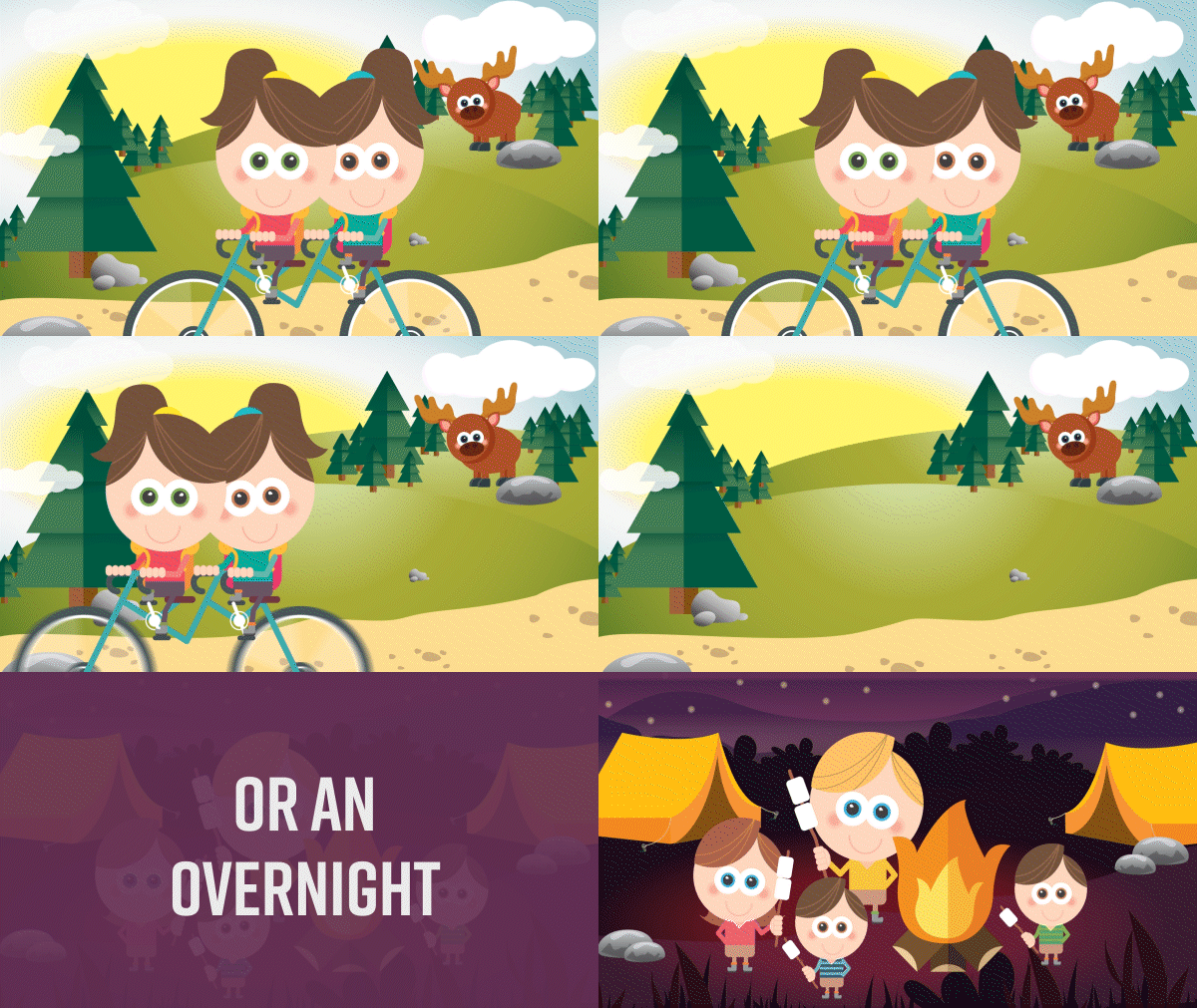
Precomposing & Transitions
Learn how to transition from one scene to the next using transitions. We'll discuss the benefits of precomposing and the basics of animation and motion to create a smooth transition.


Adjusting Video & Adding Audio
Combining imagery with video is After Effect's most powerful asset and takes design to the next level. We will discuss sources for downloading audio and video and how to incorporate them into projects.